Time Machine Mac Not Working: Causes and Solutions to Fix It
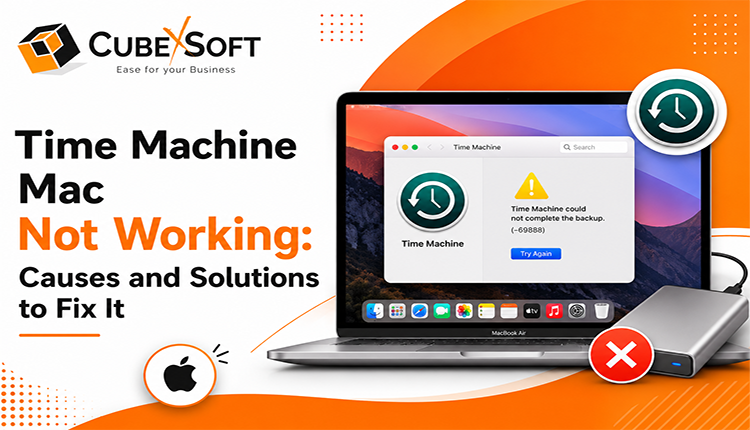
Is your Time Machine Mac not working when you need to back up important files? Many Mac users face issues like backup failures, stuck backups, disk detection errors, or connection problems. Since Time Machine is a built-in macOS backup feature, any issue with it can put your data at risk.
In this comprehensive blog, we will explain the common reasons why Time Machine is not working on Mac and provide step-by-step solutions to fix backup problems and keep your data safe.
Common Reasons Behind Time Machine Mac Not Working Issues
1. External Drive Connection Issues– If your backup drive is not properly connected or is not formatted correctly, Time Machine backup failed errors may occur. Make sure the drive is connected properly and formatted in a Mac-compatible format such as APFS.
2. Insufficient Storage Space– Time Machine requires enough free space on your backup drive to save new files. When the storage becomes full, you may experience issues like Time Machine backup is stuck or backup failures.
3. Software Conflicts– Third-party applications, antivirus programs, or certain macOS settings can interfere with Time Machine and prevent it from working properly. Identifying these conflicts can help restore normal functionality.
4. Corrupted Backup Files– Sometimes, existing backup files can become corrupted, causing Time Machine errors and preventing new backups from being created successfully.
5. Network Connection Problems– If you use a network drive or Time Capsule for backups, an unstable connection or incorrect network settings can lead to Time Machine not working on Mac issues.
Troubleshooting Steps to Fix Time Machine Backup Errors
Follow these troubleshooting steps to fix common Time Machine backup problems related to drives, storage, software, and network connections.
1. Check the External Drive Connection and Format
The first step is to make sure your backup drive is properly connected to your Mac.
- Detach the external drive and re-join it firmly.
- Open Finder and check whether the drive appears on your Mac.
- Make sure the drive is formatted with a Mac-supported format such as APFS or Mac OS Extended (HFS+).
- If the drive is using an unsupported format, you may need to reformat it. Keep in mind that reformatting will erase all existing data, so create a backup before proceeding.
A faulty connection or incompatible format is one of the common reasons behind Time Machine backup failed errors.
2. Free Up Space on the Backup Drive
Time Machine requires enough available storage space to create new backups. If your backup drive is full, the backup process may stop or become stuck. To free up space:
- Open Time Machine settings on your Mac.
- Remove unnecessary older backups.
- Delete files that are no longer required from the backup drive.
- Consider upgrading to a larger external drive if you regularly run out of storage.
Keeping sufficient free space can help prevent issues like Time Machine backup is stuck.
3. Restart Time Machine and Your Mac
A simple restart can sometimes fix temporary software glitches. Follow these steps:
- Open System Settings on your Mac.
- Go to Time Machine settings.
- Turn off automatic backups.
- Restart your Mac.
- Turn Time Machine back on and try running the backup again.
This can refresh system processes and resolve minor Time Machine errors.
4. Check for Software Conflicts
Some third-party applications, antivirus programs, or recent system changes may interfere with Time Machine. To identify software conflicts:
- Think about any recently installed apps or system changes.
- Temporarily disable suspicious applications.
- Try running a Time Machine backup again.
- If the issue is resolved, remove the conflicting application or contact the developer for support.
5. Repair or Remove Corrupted Backups
Sometimes, damaged backup files can prevent Time Machine from working correctly.
You can try these solutions:
Repair the Backup Drive:
- Open Disk Utility on your Mac.
- Select your Time Machine backup drive.
- Click First Aid to scan and repair possible errors.
Delete Corrupted Backups:
- If the repair does not work, remove the damaged backup file.
- Create a new backup using Time Machine.
6. Fix Network Connection Problems
If you use a network drive or Time Capsule for backups, connection problems can cause Time Machine not working on Mac issues. Try these steps:
- Make sure your Mac and backup destination are connected to the same network.
- Restart your Wi-Fi router.
- Reconnect your Mac to the network.
- Check that network settings are configured correctly.
Advanced Solutions for Persistent Time Machine Mac Not Working Problems
If basic troubleshooting does not fix the issue, you can try these advanced methods.
1. Reset Time Machine Preferences
Sometimes, corrupted Time Machine settings can cause backup problems. Resetting the preference file can help restore normal functionality.
- Open Finder.
- Click Go > Go to Folder.
- Enter: /Library/Preferences/
- Find the file: com.apple.TimeMachine.plist
- Move the file to Trash.
- Restart your Mac.
- Set up Time Machine again and try creating a backup.
2. Use Terminal Commands to Repair Time Machine
Advanced users can use Terminal commands to check Time Machine settings and identify backup-related problems. Open Terminal from Applications > Utilities and run Time Machine commands such as: tmutil listbackups
This command displays available backups and can help identify issues with your Time Machine backup files.
3. Reinstall macOS
If none of the troubleshooting methods work, reinstalling macOS may fix deeper system-related problems affecting Time Machine.
Before reinstalling:
- Create a complete backup of your important files.
- Save your important passwords and settings.
- Use macOS Recovery mode to reinstall the operating system.
A fresh macOS installation can resolve persistent software issues that prevent Time Machine from working properly.
Apart from fixing backup issues, protecting your stored data is also important when managing old drives or replacing storage devices.
Secure Data Removal with CubexSoft Data Erasure Software
Fixing Time Machine Mac not working issues helps restore your backups, but protecting sensitive data is also important when replacing or disposing of old storage devices. Simply deleting files does not permanently remove them and they may still be recoverable.
CubexSoft Data Erasure Tool securely wipes data from storage devices and permanently removes files beyond recovery. It supports HDD, SSD, NVMe, and other drives while using advanced wiping methods to ensure complete data protection.


Advanced Features of Data Eraser Tool
- Securely erases data from HDD, SSD, SATA, PATA, NVMe, and M.2 drives.
- Uses advanced data wiping techniques to permanently overwrite existing data.
- Supports multiple international data erasure standards for secure data destruction.
- Generates a detailed data erasure report after completing the wiping process.
- Helps with secure device disposal, repurposing, and computer decommissioning.
- Supports compliance with various data security standards.
- Permanently removes files and storage data without leaving recoverable traces.
Conclusion
When Time Machine Mac not working, it can stop users from creating backups and protecting important data. Common issues like drive connection errors, low storage, corrupted backups, software conflicts, or network problems can affect its performance. By following the right troubleshooting steps, you can fix Time Machine issues and restore backups. For users managing old backup drives or storage devices, a secure data erasure solution like Data Wipe Software can help permanently erase sensitive data beyond recovery and protect your privacy.
