How to Fix Spell Check Not Working in Outlook Emails: 4 Easy Methods
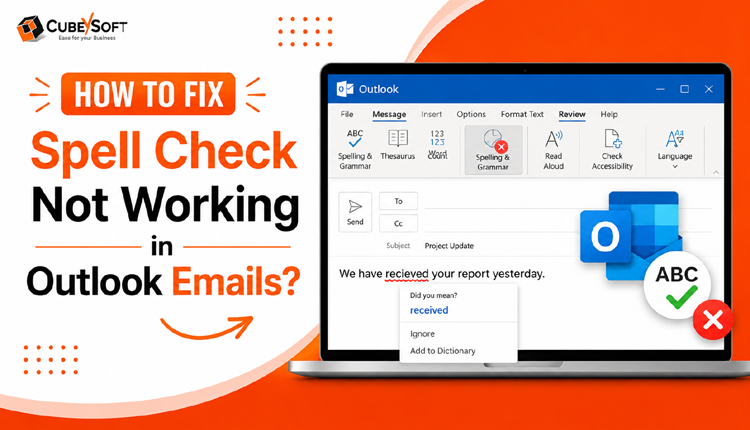
Overview: If Outlook’s spell check feature stops functioning, it can disrupt email communication and lead to unprofessional writing errors. This blog explains four practical methods to resolve the “Spell Check Not Working in Outlook Emails” issue and restore proper grammar and spelling checking in emails.
While manual troubleshooting in Outlook can often help, it may not always be effective. Issues such as missing language settings, incorrect message format (like plain text mode), or damaged Microsoft Office components can prevent the spell checker from working correctly. In such cases, basic fixes may fail to resolve the problem completely.
For persistent or complex Outlook errors, many users prefer using a reliable automated solution. These tools are designed to quickly detect and repair Outlook-related issues while ensuring data safety and maintaining email integrity. They also help eliminate manual effort and provide faster results.
By addressing these problems effectively, users can ensure smoother email communication, reduce writing errors, and maintain a consistent and professional tone in their messages.
How to Fix Spell Check Not Working in Outlook Manually
In this section, we will go through three simple Outlook settings-based methods that can help you resolve the spell check issue quickly without using any external tools. Follow each method carefully to restore the spelling and grammar checker in Outlook email.
Method 1: Enable Spell Check via Proofing Settings in Outlook
If spell check is disabled in Outlook settings, you can turn it back on using the proofing options:
- Launch the Microsoft Outlook application on your Windows system.
- Click on the File tab and select Options from the menu.
- In the Outlook Options window, go to Mail and then click on Proofing.
- Locate the section titled When correcting spelling in Outlook.
- Ensure the following options are enabled:
- Check spelling as you type
- Mark grammar errors as you type
- If these options are not selected, enable them manually.
- Click OK twice to apply and save the changes.
Once completed, Outlook should resume checking spelling automatically while composing emails.
Method 2: Fix Spell Check Issues in Compose Message Settings
Sometimes, Outlook settings related to composing emails may be unintentionally modified. You can correct them as follows:
- Open Classic Outlook on your Windows computer.
- Go to the File tab and open Options.
- Navigate to the Mail section.
- Scroll to the Compose Messages area.
- Enable the following options:
- Always check spelling before sending
- Ignore original message text in reply or forward messages
- Click OK to confirm the changes.
- Create a new email and verify whether spell check is functioning properly.
Method 3: Correct Language Settings for Spell Check in Outlook
Incorrect language selection can also prevent spell check from working. To fix this:
- Open Outlook and start a New Email.
- In the message window, go to the Review tab.
- Click on Language and choose Set Proofing Language.
- Select the appropriate language based on your region.
- Make sure the option to mark selected text as the chosen language is enabled.
- Confirm by clicking OK.
If the language setting was incorrect, updating it should restore spell check functionality.
Limitations of Manual Troubleshooting
Although manual methods can resolve basic configuration issues, they may not work in all situations. Some common limitations include:
- These fixes are ineffective if the issue originates from server-side settings.
- They do not help when Microsoft Office is missing required proofing tools or language packs.
- Manual steps cannot resolve problems caused by restricted system policies or administrator controls.
- If Outlook profile data or PST files are damaged, these settings will not fix the issue.
- In cases of deeper software corruption, manual adjustments may not deliver results.
Because of these limitations, advanced or automated solutions may be required when the issue persists.
How to Fix Spell Check Not Working in Outlook Using CubexSoft Tool
When Outlook’s spell check stops working due to deeper issues like PST corruption or profile inconsistencies, manual troubleshooting may not be enough. In such situations, an automated solution such as CubexSoft PST Converter can help resolve underlying file-related problems and restore Outlook functionality effectively.
The software is designed to process Outlook PST files and convert or repair mailbox data in a healthy format. If spell check issues are linked to damaged PST data, this tool helps rebuild accessibility by extracting mailbox items and ensuring they are transferred into a usable structure without errors. The software works by scanning the PST file, identifying inconsistencies, and then exporting mailbox content in a clean and accessible form. During this process, it maintains the original folder hierarchy and preserves email data integrity, ensuring that no important information is lost.
Once the repaired or converted data is imported back into Outlook, users can regain normal mailbox functionality, including features like spell check, which may have previously stopped working due to file corruption. Overall, using CubexSoft Outlook Converter provides a practical alternative when traditional Outlook fixes fail, especially in cases involving corrupted or inaccessible PST files.
Advantages of Using an Automatic Solution
- This tool is capable of resolving both minor and severe levels of PST file corruption.
- It can also help address issues such as missing or disappeared Outlook attachments.
- The software offers a simple and intuitive interface, making it suitable for both technical users and beginners.
- It is often used to fix internal Outlook errors like MAPI-related issues, providing a dependable recovery option.
- The application can also recover deleted emails and lost mailbox folders from PST files.
Final Thoughts
To conclude this guide on fixing the “spell check not working in Outlook emails” issue, we have discussed multiple methods, including built-in Outlook settings adjustments that often help restore normal functionality. In many cases, these manual solutions are enough to resolve the problem and get Outlook working properly again. However, if the issue persists due to deeper technical problems such as PST corruption or internal errors, automated solutions can provide a faster and more reliable fix. These tools are designed to repair underlying issues and ensure smooth Outlook performance without complex manual steps. Ultimately, the choice depends on the severity of the problem and the level of convenience you prefer while troubleshooting Outlook errors.
