How Do I Export Contacts from a VCF File?
As we know, managing digital contacts has become an essential part of both personal and professional life. Whether you’re switching smartphones, migrating to a new email platform, or backing up your address book, you’ve probably come across VCF (vCard) files.
VCF files are widely used for storing contact information such as names, phone numbers, email addresses, company details, and even profile pictures. While VCF files are universally recognized by many applications, there are situations where you may need to export your contacts into another format. For example, PST for Outlook access, CSV for Excel access and many users prefer PDF or other formats for record-keeping. In this guide, you’ll learn how do i export contacts from a VCF file using the finest vCard Export Tool. Let’s begin our article.
What Is a VCF File?
A VCF (Virtual Contact File), also known as a vCard, is a standard file format enables to keep contact information. It allows users to save and exchange contact details across different devices and email applications. A single VCF file may contain: Contact name, Mobile and landline numbers, Email addresses, Company information, Job title, Website URL, Home and office addresses, Contact photo, Notes and additional details. Because of its compatibility, VCF files are commonly used by Android phones, iPhones, Gmail, Outlook, Apple Contacts, and many other applications.
Why Export Contacts from a VCF File?
Although VCF files are versatile, they are not always the ideal format for every situation. Exporting contacts into another format can make data management easier and improve compatibility with different applications. Let’s look how exporting contacts is helpful:
- To migrate contacts to Outlook
- To export contacts to Excel
- For keeping backup contacts in PDF
- To import contacts to iCloud
- Sharing contact lists with colleagues
- Organizing customer databases
- Preserving contacts before switching devices
Go with the Professional VCF Export Tool to Export Contacts from a VCF File
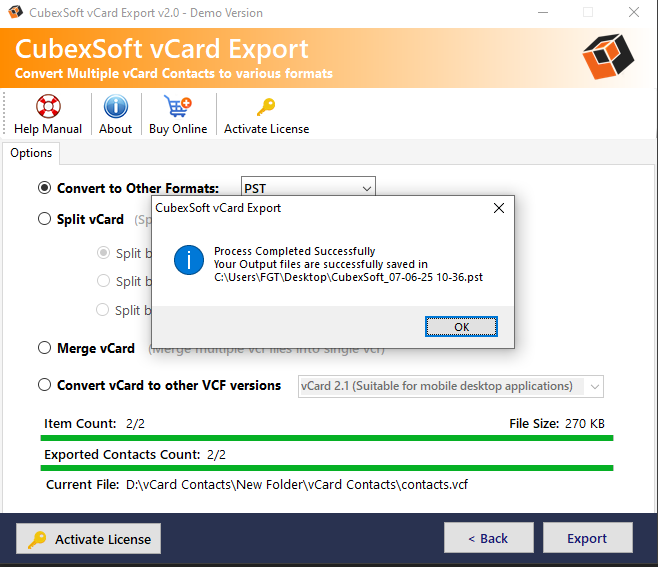
CubexSoft vCard Converter is a utility designed to convert VCF files into various file formats without losing important contact details. Instead of manually importing and exporting contacts through multiple applications, this application automates the entire process. The tool is able to convert unlimited .vcf files to another format in a single processing, while keeping all the information intact. The tool enables to convert vCard to PST, CSV, PDF, MSG, EML, HTML, etc. The tool is Windows OS compatible runs on all Windows versions for example Windows 11, Windows 10, Windows 8, etc. let’s know the advantages of using this software.
Saves Time: Instead of exporting contacts individually, you can convert hundreds or even thousands of contacts in a single operation.
Preserves Contact Information: The app converts complete information including: phone numbers, email addresses, company names, images,notes, addresses, etc.
Reduces Errors: Manual conversions increase the chances of missing or incorrectly formatted data. This automated conversion minimizes these risks.
Supports Multiple Formats: The tool can export contacts into several popular formats, eliminating the need for multiple applications.
Simplifies Migration: Whether you’re moving to Outlook, Gmail, Apple Contacts, or another platform, exporting contacts becomes much easier with this solution.
How to Export Contacts from a VCF File? – Steps
Following are the working steps of the software:
Step 1: Install the Software
Download and install the software on your Windows.


Step 2: Add Your VCF Files
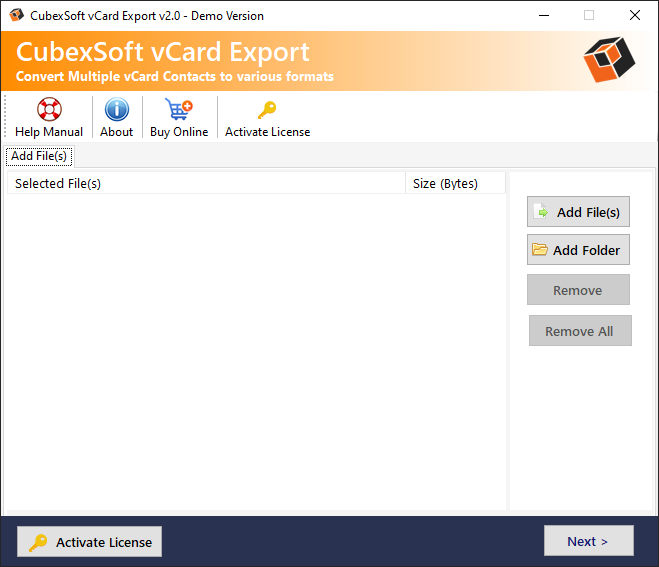
Launch the software and click Add File or Add Folder.
Step 3: Select the Output Format
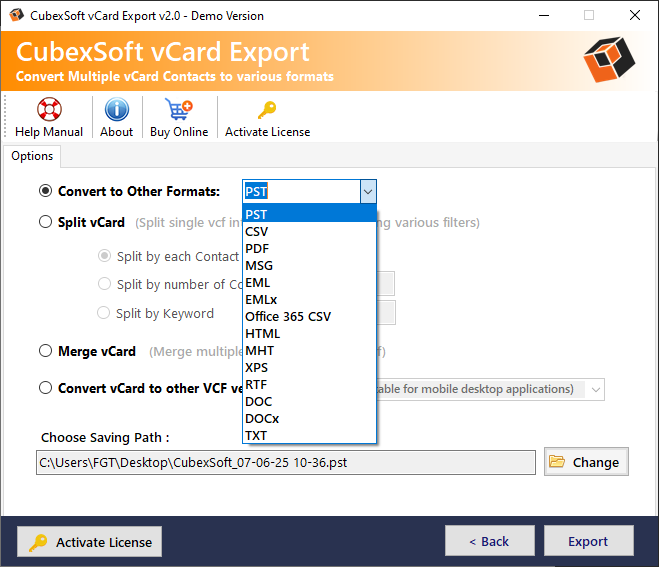
Choose the format that best suits your needs, such as CSV for Microsoft Excel, PST for Microsoft Outlook, PDF for printable records, HTML for web viewing, EML for email applications, MSG for Outlook messages, and many more.
Step 4: Choose the Saving Path
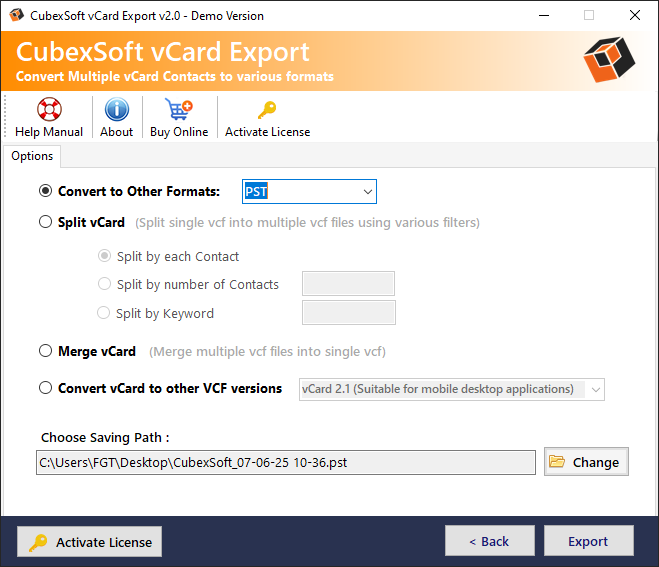
Select the path for saving the converted files.
Step 5: Start the Conversion
Click the Export button. Within a few moments, the software exports all selected contacts into the chosen format while preserving original information.
Features of the VCF Export Software
- Batch conversion of multiple VCF files
- Support for vCard 2.1, 3.0, and 4.0
- Preservation of complete contact information
- Maintenance of metadata and formatting
- User-friendly interface
- Fast conversion speed
- Compatibility with the latest Windows OS versions
- Free demo enables to export 5 VCF files for free
Read more
Wrap Up
The suggested software in this blog automates the conversion task, as it enables exporting batch contacts at once in seconds. While manual methods may work for a small number of contacts, they often become time-consuming and prone to errors when dealing with larger contact lists. The reliable software streamlines the entire process by allowing you to export VCF files into formats like PST, CSV, PDF, HTML, and more all while preserving essential contact information such as names, phone numbers, email addresses, photos, and other metadata. The tool is workable on the latest and previous editions of Windows Operating Systems such as Windows 11, 10, 8, 7, 8.1, etc. The trial version of the tool enables the export of 5 .vcf files free of cost.
