How to Backup Titan Emails: Manual & Automatic Methods Explained
Introduction– Keeping a backup of important emails helps protect valuable data from accidental deletion, account issues, or unexpected data loss. If you are looking for how to backup Titan email, this blog explains different methods to securely save Titan Mail emails.
Quick Overview
Titan Mail provides a built-in email backup feature that allows users to automatically create daily backups (depending on their plan). Users who need multiple account backups, different export formats, or email migration can use manual methods or professional backup solutions.
Why Should You Create a Titan Email Backup?
- Keep your valuable emails safe from accidental deletion or unexpected data loss.
- Restore important emails whenever you need them.
- Easily transfer emails to another email service or platform.
- Store a backup copy of your emails for future access.
- Avoid losing important business and personal communication.
How to Backup Titan Email: Different Methods
Titan Mail users can create a backup of their emails using different methods according to their requirements. Users can either use the built-in Titan Email Backup feature or manually export emails using email clients like Thunderbird, Outlook, and Apple Mail.
Method 1: Built-In Titan Email Backup Feature
Titan Mail provides an in-built email backup feature that allows users to automatically create daily backups of their mailbox data. However, this feature availability depends on the Titan Mail plan.
- Log in to the Titan Admin Panel.
- Navigate to the Email Backup section.
- Select the required user email account.
- Enable the backup option using the toggle button.
- Titan will automatically create daily backups of the selected mailbox.
This method is useful for users who want an automated way to protect their emails without manually exporting data.
Method 2: Backup Titan Emails Using Thunderbird
- Open Mozilla Thunderbird on your system.
- Click on the Menu option and select: Account Actions -> Add Mail Account.
- Enter your Titan email account details, including your email address and password.
- Click Continue and complete the required account configuration.
- Click Finish to connect your Titan Mail account successfully.
- Once connected, all Titan mailbox folders will appear in the Thunderbird panel.
- Right-click on the required folder and select: ImportExportToolsNG -> Export Folder.
- Choose the destination location and save the exported emails.
Your Titan emails will be saved locally in MBOX format. Thunderbird can also be used to export emails in EML format.
Method 3: Backup Titan Emails Using Microsoft Outlook
- Open Microsoft Outlook on your system.
- Go to File -> Add Account and enter your Titan email login details.
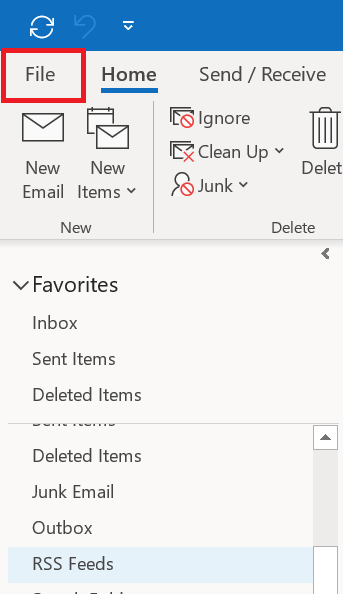
- Complete the setup process and wait until all mailbox folders are synchronized.
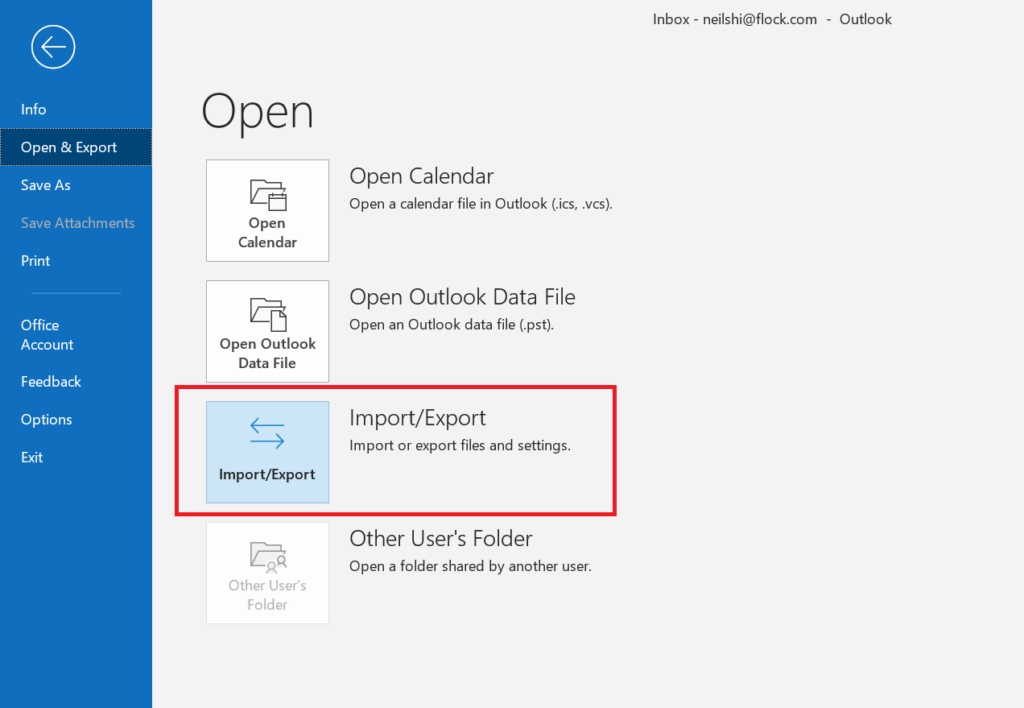
- Go to File -> Open & Export -> Import/Export.
- Pick Export to a File and click Next.
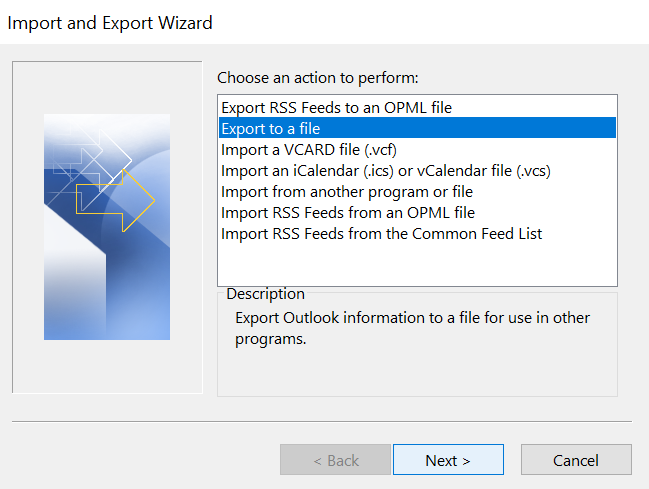
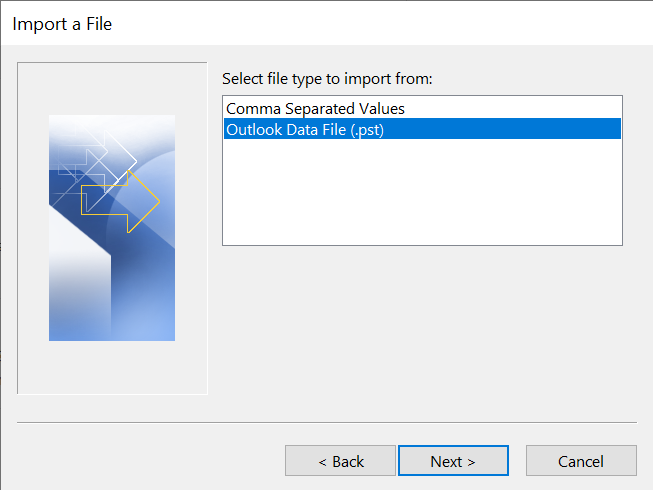
- Choose Outlook Data File (.pst) and click Next.
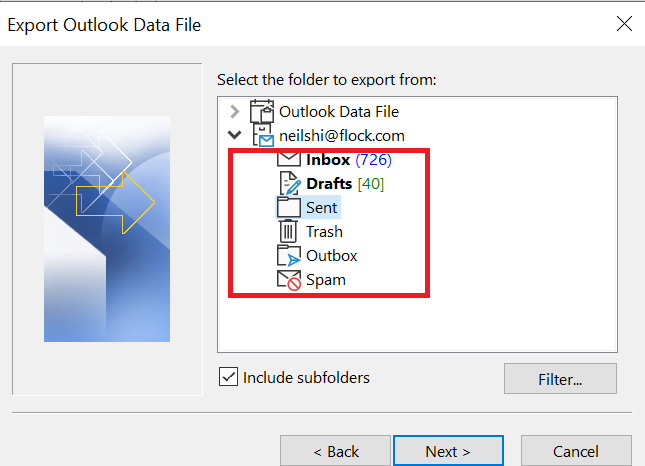
- Select the required mail folder that you want to back up and click Next.
- Choose a destination location and enter a name for your backup file.
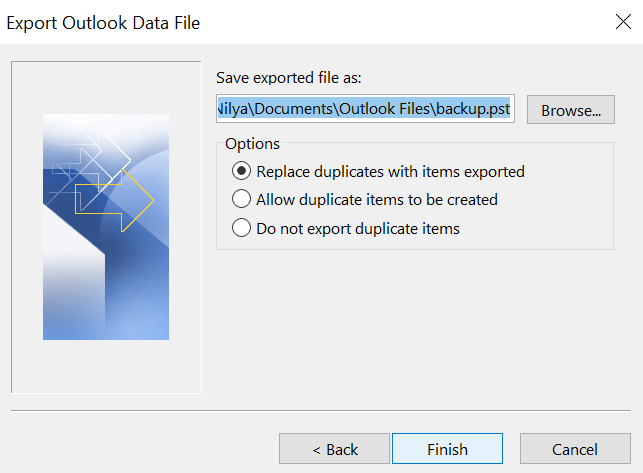
- Click Finish to complete the export process.
Your Titan emails will be saved as a PST file at the selected location.
Method 4: Backup Titan Emails Using Apple Mail
- Launch the Apple Mail App on your macOS.
- Go to Mail -> Add Account and enter your Titan email account details.
- Complete the account setup and allow Apple Mail to sync all mailbox folders.
- Select the mailbox folder that you want to export.
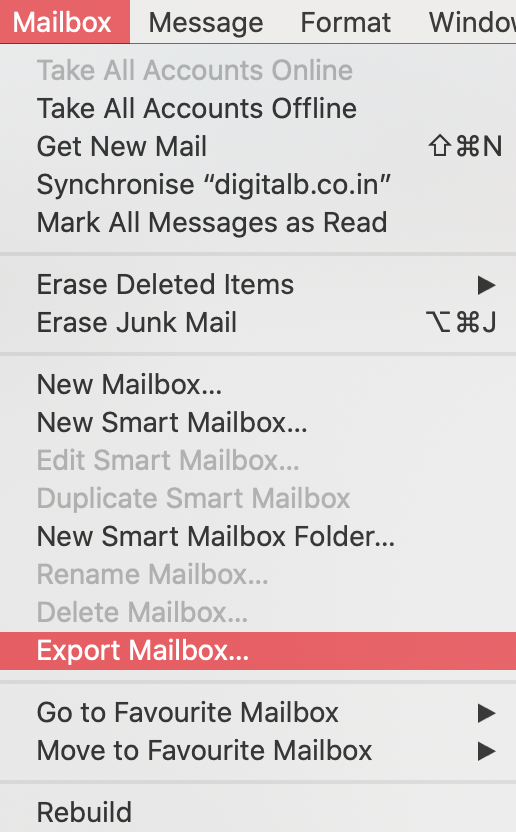
- Click on Mailbox -> Export Mailbox.
- Choose an existing folder or create a new folder to save the exported mailbox data, then click Choose.
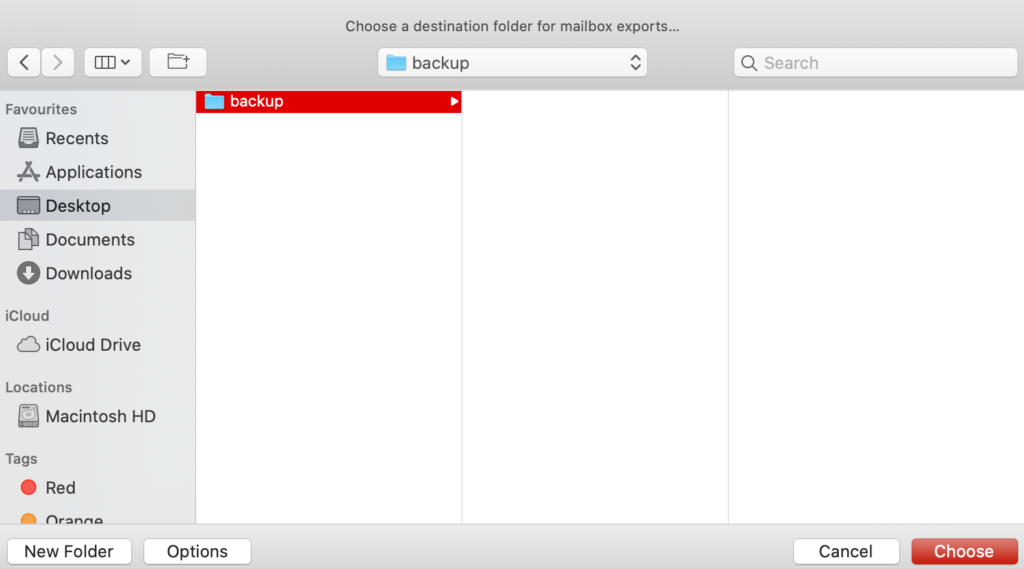
- Apple Mail will export the selected Titan emails and save them in MBOX format at the chosen location.
Challenges of Manual Titan Email Backup
Manual backup methods work well for individual accounts, but managing multiple Titan mailboxes manually can be time-consuming. In such cases, an automated backup solution can simplify the process.
For users managing multiple mailboxes, understanding how to take a backup of Titan emails efficiently is important to prevent data loss and maintain easy access to important communications.
How to Take Backup of Titan Mail Accounts Professionally?
For users who need an advanced and efficient way to backup Titan Mail accounts, the CubexSoft Titan Email Backup Tool is a perfect and ideal approach. The tool allows users to export Titan emails to multiple local file formats as well as email platforms while keeping the original mailbox structure.


The software comes with advanced features and filtering options that make the Titan email backup process simple and convenient for both technical and home users. Users can select specific folders, apply filters, and perform bulk email backups without any hassle.
Powered by advanced algorithms, the Titan Mail Backup Tool helps users securely save their Titan mailbox data and makes the backup process faster and more efficient.
How Does the Software Work to Download Titan Emails?
Note: Before connecting your Titan email account with the software, make sure that two-factor authentication is disabled. This is required to successfully configure the Titan account and start the backup process.
- Download the Titan Email Backup Software on your system.
- Launch the software and select the IMAP Server option from the available email service list.
- Enter your Titan email address, password, and required IMAP server details, then click the Login button.
- Select the required mailbox folders and subfolders from the left panel.
- Choose the desired saving option from the Select Saving Option section.
- Use the Filter Options tab to apply advanced filters if required.
- Configure the File Naming Option to organize exported emails properly.
- Select the destination location using the Browse button to save the backup files.
- Click the Backup button to start downloading and saving Titan emails.
Major Capabilities of CubexSoft Titan Mail Backup Software
- Backup multiple Titan email accounts simultaneously using batch mode.
- Export emails from selected folders in bulk.
- Save Titan emails in various file formats and email platforms.
- Filter emails by date, sender, recipient, subject, and exclude unwanted folders.
- Automate Titan email backups daily, weekly, or monthly.
- Backup only newly received emails after the previous backup.
- Organize exported email files with customized naming options.
- Preserves folders, email formatting, and details like To, Cc, Bcc, From, Subject, and Date.
Alternative Solution for Titan Mail Account Backup
CubexSoft IMAP Backup Software-
If you are looking for a simple way to back up a small number of Titan email accounts, an IMAP Backup Tool can be a suitable option. It enables users to connect IMAP-based accounts and export emails securely with an easy-to-use procedure. This method is more suitable for individual users as well as small businesses with limited backup requirements.
FAQs About Titan Email Backup
Q1. How to backup Titan emails?
You can backup Titan emails using the built-in Titan backup feature, email clients like Thunderbird, Outlook, and Mac Apple Mail, or an expert Titan email backup solution.
Q2. Does Titan Mail provide an automatic backup feature?
Yes, Titan Mail provides an in-built backup feature that allows users to create automatic daily backups, depending on their plan availability.
Q3. Can I backup multiple Titan email accounts at once?
Yes, multiple Titan email accounts can be backed up using a secure backup solution that supports bulk email backup.
Q4. Which file formats can be used to save Titan emails?
Titan emails can be exported into different formats depending on the method or tool you use, like PST, MBOX, and EML.
Knowing how to take a backup of Titan emails helps users protect important mailbox data and keep their emails accessible whenever required.
Conclusion
Manual methods are suitable for users who need to export a limited amount of Titan email data. However, for large-scale requirements, an incredible solution i.e. the Titan Email Migration Tool offers a faster and more convenient way to save Titan emails. Users can try the free demo version to export up to 25 emails from each folder and evaluate the software before purchasing.
