Outlook Calendar Crashing When Opened? Causes and Proven Solutions
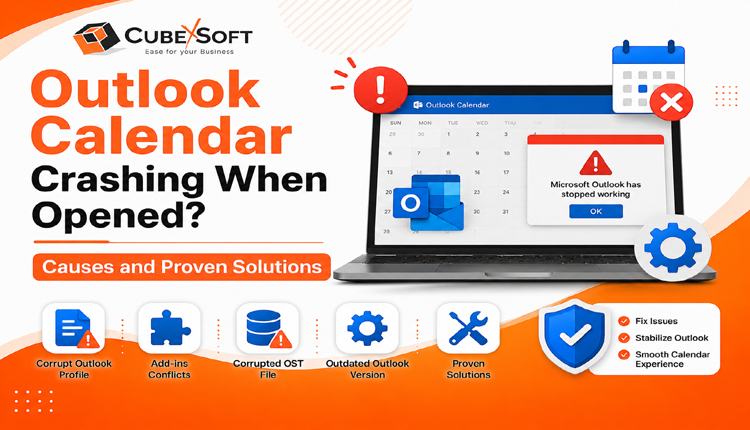
Many Outlook users experience unexpected crashes while trying to access the Calendar feature, affecting both classic and newer Outlook versions. The problem can interrupt daily tasks such as scheduling meetings, managing appointments, and organizing events, forcing users to restart the application. This Outlook Calendar crashes may be linked to problems within the Outlook application, Windows system settings, or damaged mailbox data files. Understanding the root causes is important for finding the right solution.
In this guide, we will explore the common reasons behind Outlook Calendar crashes and discuss practical methods to restore smooth Outlook functionality.
Common Causes Behind Outlook Calendar Crashing Issues
Outlook may stop responding or close unexpectedly when accessing the Calendar due to several underlying factors. The problem is often related to application settings, account configuration, or system-related issues.
Some common reasons that can trigger Outlook crashes while opening personal or shared calendars include:
- Faulty Outlook Add-ins: Incompatible or outdated add-ins can interfere with Outlook functions and cause unexpected crashes.
- Insufficient Calendar Permissions: Limited access rights to shared calendars may prevent Outlook from loading calendar data properly.
- Damaged Outlook Profile: A corrupted or outdated Outlook profile can affect normal application performance.
- Corrupted PST File: Errors within the Outlook data file may prevent calendar items and other mailbox components from opening correctly.
- Outdated Outlook Version: Running an older Outlook build may lead to compatibility issues and application failures.
- Missing Windows Updates: Pending Windows patches or system updates can impact Outlook stability.
- Enabled Weather Feature in Calendar: The weather option in Outlook Calendar may sometimes conflict with the application and result in crashes.
Effective Ways to Fix Outlook Crashes When Opening Calendar
Outlook Calendar crashes can often occur because of corrupted cache data, incorrect settings, or application-related problems. Before trying advanced troubleshooting methods, you can start by clearing temporary Outlook data and restoring the default Calendar view.
To reset the Calendar view, open Outlook, go to the View tab, and select Reset View. After applying the changes, reopen the Calendar to check whether the issue has been resolved. If Outlook continues to crash, try the following solutions.
Solution 1 – Install the Latest Outlook Updates
An outdated Outlook version or problematic updates can sometimes cause Calendar-related crashes. Some users have reported experiencing this issue after installing specific Microsoft Office security updates, especially with older Outlook versions.
To resolve the problem, check for available Office updates and install the latest patches released by Microsoft. If the issue started immediately after a recent update, you can consider uninstalling the problematic update or restoring the system to an earlier state.
Keeping Outlook updated helps fix compatibility issues, improves stability, and ensures better performance while accessing Calendar features.
Solution 2 – Launch Outlook in Safe Mode to Identify Add-in Problems
Faulty or incompatible add-ins can interfere with Outlook’s normal operations and may cause the application to crash while opening the Calendar. Running Outlook in Safe Mode helps determine whether an add-in is responsible for the issue.
- Press Windows + R to open the Run dialog box.
- Type Outlook /safe and click OK.
- Outlook will start with add-ins disabled.
- Try opening the Calendar and check if Outlook works properly.
If the Calendar opens without crashing, a problematic add-in is likely causing the issue. You can disable add-ins by following these steps:
- Open Outlook and go to File > Options.
- Select Add-ins from the Outlook Options window.
- Under Manage, choose COM Add-ins and click Go.
- Clear the checkboxes for all add-ins and select OK.
- Close Outlook and restart it normally.
After disabling the add-ins, open the Calendar again. If Outlook works correctly, enable the add-ins one by one to identify the one causing the problem.
Solution 3 – Turn Off Weather Information in Outlook Calendar
The weather feature in Outlook Calendar can sometimes cause unexpected issues, especially when Outlook fails to retrieve weather updates correctly. Disabling this option may help prevent Calendar-related crashes.
Follow these steps to disable the weather feature:
- Open Outlook and go to File > Options.
- Select Calendar from the Outlook Options window.
- Scroll down to the Weather section.
- Uncheck the “Show weather on the calendar” option.
- Click OK to save the changes.
Restart Outlook and try opening the Calendar again to check if the issue has been resolved.
Solution 4 – Verify and Update Calendar Permissions
Incorrect permissions or synchronization problems can prevent Outlook from accessing calendar data properly, which may lead to application crashes. Checking and adjusting calendar permissions can help restore normal functionality.
Follow these steps:
- Right-click the Calendar folder and select Properties.
- Under the General tab, make sure the Read-only option is not enabled.
- Open the Security tab and review the assigned permissions.
- Ensure that the required access level, such as Full Control, is granted. Click Apply and then OK.
- Open the Synchronization tab and review the sync details, including:
- Last synchronized time
- Server folder item count
- Offline folder item count
If the synchronization details do not match or show outdated information, there may be a sync-related problem. Check the Sync Issues folder in Outlook to identify errors.
For permission-related issues in shared calendars, contact your administrator to verify and update access settings.
Solution 5 – Create a New Outlook Profile
A damaged Outlook profile can affect various features, including Calendar access. Creating a new profile can help resolve crashes caused by profile corruption.
Follow these steps to create a new Outlook profile:
- Close Outlook completely.
- Open Control Panel.
- Go to User Accounts > Mail.
- Click Show Profiles.
- Select Add and create a new Outlook profile.
After creating the new profile, configure your email account and open Outlook to check whether the Calendar opens without crashing.
Solution 6 – Repair Microsoft Office Installation
Outlook may crash while accessing the Calendar if some Microsoft Office or Outlook program files become damaged. Repairing the Office installation can help fix missing or corrupted application components and restore normal functionality.
Follow these steps to repair Outlook:
- Open Control Panel on your system.
- Select Uninstall a program under the Programs section.
- Find Microsoft Office from the installed programs list.
- Right-click on Microsoft Office and select Change.
- Follow the on-screen instructions to complete the repair process.
- Restart Outlook and check whether the Calendar opens properly.
Solution 7 – Repair Corrupted Outlook PST File
Outlook stores important mailbox information, including emails, contacts, and calendar entries, inside a PST file. If this file becomes damaged or corrupted, Outlook may fail to access calendar data and can crash while opening it.
For minor PST corruption issues, you can use Microsoft’s built-in ScanPST.exe utility. This tool scans the PST file and repairs basic errors. However, it may not provide effective results for severely corrupted, encrypted, or oversized PST files. In some cases, it may remove damaged data instead of fully restoring it, which can lead to data loss.
For serious PST corruption problems, a professional PST Conversion solution can be a better option. CubexSoft PST Converter can export severely PST files and mailbox components such as emails, contacts, and calendar items while maintaining data integrity. It also provides options to manage large PST files by splitting or compressing them, helping resolve issues caused by oversized mailbox data.


Conclusion
Outlook Calendar crashes can occur due to multiple reasons, including outdated software, faulty add-ins, permission issues, profile corruption, or damaged PST files. By following the troubleshooting methods discussed above, you can identify and resolve the cause behind the problem.
If PST file corruption is preventing Outlook from loading calendar items, the ScanPST.exe tool can help repair minor issues. However, for severely damaged or large PST files, an advanced tool like CubexSoft Outlook Export can help export mailbox data without compromising important information.
