Why Is My IMAP Email Server Not Responding? Fix It Easily
Are you facing the IMAP email server not responding error while sending or receiving emails? This issue can prevent your email application from connecting to the server and accessing your messages. In this guide, we will explain the common reasons behind this error and share simple solutions to fix it.
IMAP (Internet Message Access Protocol) helps email clients like Gmail, Outlook, and Apple Mail connect with your email server. It allows users to access and manage emails from multiple devices without downloading all messages locally. When there is a problem with the IMAP settings or server connection, you may encounter issues while accessing your emails.
Common Reasons Behind the IMAP Server Not Responding Error
The IMAP email server not responding error can prevent users from accessing their emails or performing tasks like sending and receiving messages. This issue commonly occurs due to incorrect email settings, server problems, network issues, or configuration errors in email clients like Outlook, Gmail, and Apple Mail.
Some common causes behind this error include:
- Unstable internet or Wi-Fi connection
- Temporary email server issues or downtime
- Network restrictions or firewall blocking the connection
- Email client compatibility problems
- Faulty or outdated Outlook add-ins
- Hardware or software-related issues
- Incorrect login credentials
- Improper email account configuration
- Corrupted email profile
- Large Outlook OST file size
- Incorrect SSL settings
- Wrong IMAP server or port number
Now that we know the possible causes, let’s explore the methods to fix the IMAP server not responding error.
💡 Also Read
Looking for more IMAP solutions? Check out these helpful guides:
How to Fix IMAP Server Not Responding Error?
If you are facing the IMAP email server not responding error, try these troubleshooting methods to restore your email connection.
Manual Methods to Fix IMAP Server Not Responding Error
Method 1: Check Your Internet Connection
An unbalanced internet connectivity is a common reason behind the IMAP server not responding error. Check your network before trying other fixes.
- Check whether your Wi-Fi or network connection is active.
- Restart your router or reconnect your network.
- Try accessing your email again after the connection is restored.
If the issue continues, move to the next solution.
Method 2: Verify IMAP Settings
Incorrect IMAP or SMTP settings can block Outlook from connecting to the email server. Verify your account settings and update them if required.
- Open MS Outlook and go to File > Info > Account Settings.
- Select your IMAP email account and click Update.
- Open More Settings and go to the Outgoing Server tab.
- Enable the option “SMTP server requires authentication” if it is not already selected.
- Go to the Advanced tab and verify the incoming and outgoing server port numbers.

- Contact your email administrator to confirm the correct port numbers if required.
- Click OK and restart Outlook.
After updating the settings, check if the IMAP email server not responding issue is resolved.
Method 3: Configure SSL Settings
Incorrect SSL settings may cause IMAP connection issues. Configure the correct ports for a secure connection. Use these port numbers:
- IMAP Port: 993
- Outgoing Server (SMTP): 465
After applying the correct SSL settings, check your email connection again.
Method 4: Recreate the OST File in Outlook
A damaged OST file can affect Microsoft Outlook synchronization. Creating a new OST file helps Outlook sync mailbox data again.
- Open Outlook and go to File > Info > Account Settings > Account Settings.
- Open the Data Files section and select your IMAP account.
- Locate the OST file location and close Outlook.
- Create a backup copy of the existing OST file by moving it to another folder or external drive.
- Delete the original OST file from its default location.
- Restart Outlook.
Outlook will automatically create a new OST file and sync mailbox data from the server.
Method 5: Enable IMAP Settings on the Server
Disabled IMAP access can prevent email applications from connecting. Enable IMAP settings to resolve the issue.
For Gmail accounts, follow these steps:
- Open your Gmail account in a web browser.
- Press Settings (gear icon) and pick See all settings.
- Go to the Forwarding and IMAP/POP tab.
- Select Enable IMAP.

- Click Save Changes.
- Return to Outlook and configure your account using IMAP settings.
If you are using another email provider, contact your administrator to enable IMAP access.
Method 6: Check Temporary Server Issues
Temporary server downtime can also cause this issue. Wait until the server is available and try again.
Keeping a backup of important emails can help protect your data during unexpected server problems.
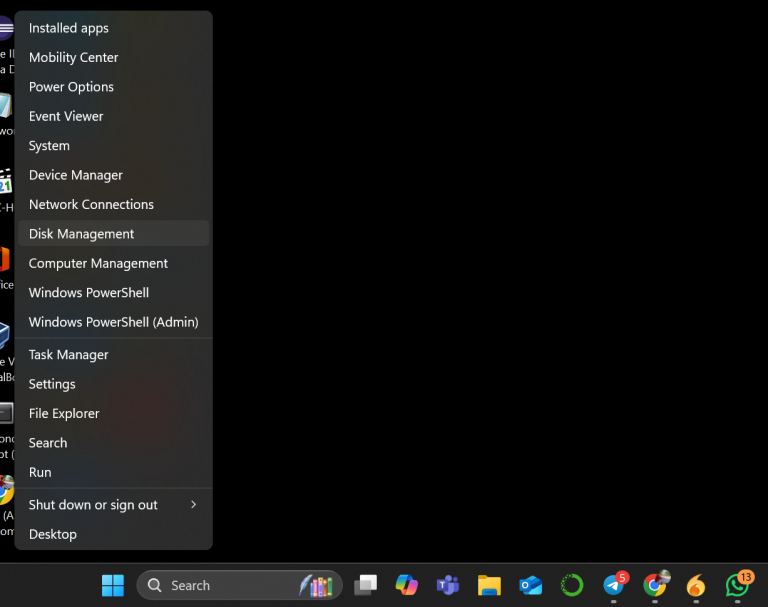
Method 7: Close Background Applications
Background applications can affect system performance and email connectivity. Close unnecessary programs and check again.
- Open the search bar on your system.
- Search for Task Manager.
- Select the application you want to close.
- Right-click on the application.
- Click End Task.
Check your email again. If the issue continues, try the next method.
Method 8: Create a New Outlook Profile
A damaged or incorrectly configured Outlook profile can cause IMAP errors. Creating a new profile can fix connection problems.
- Open Control Panel & go to User Accounts > Mail.
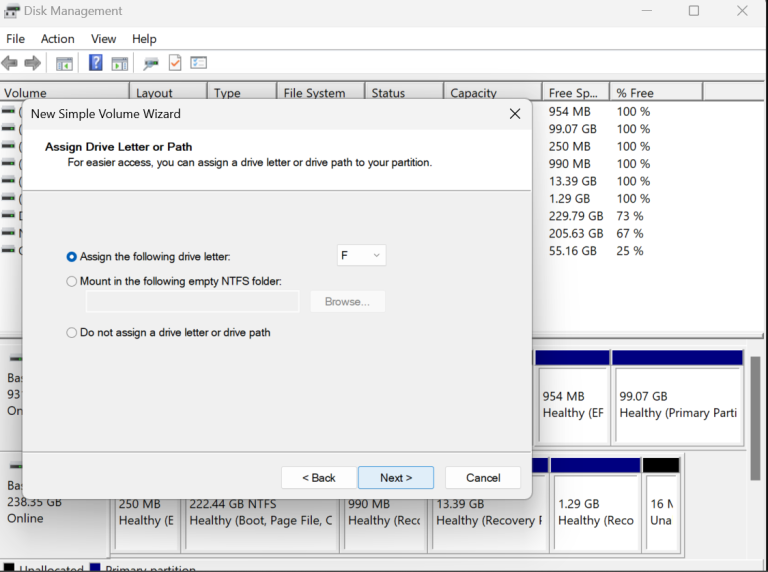
- Click Show Profiles and select Add.
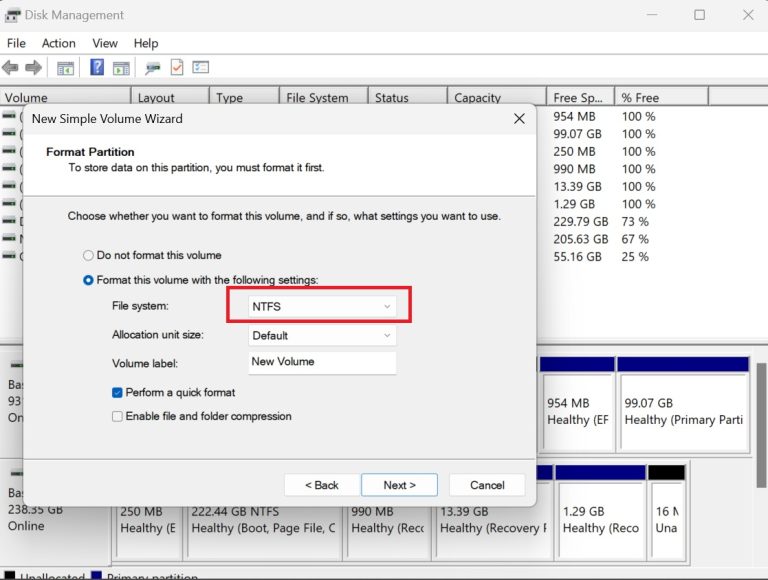
- Enter a new profile name and click OK.
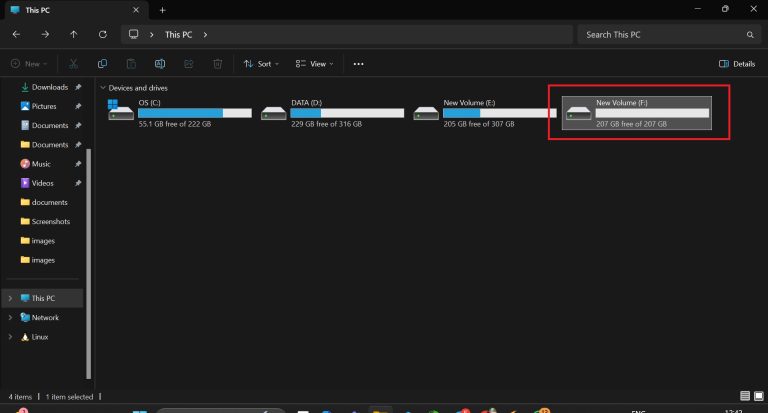
- Add your IMAP email account credentials and click Next.
- Complete the setup by clicking Finish.
- In the Mail window, select Always use this profile.
- Choose the newly created profile from the dropdown menu.
- Click OK and restart Outlook.
These methods can help fix the IMAP Server Not Responding error and restore access to your emails.
Limitations of Manual Methods to Fix IMAP Server Issues
Manual methods can fix basic IMAP server not responding error issues, but they have some limitations. They may take time, require technical knowledge, and can lead to mistakes if steps are not followed correctly.
- Time-consuming: Troubleshooting large mailbox data can take significant time.
- Risk of errors: Incorrect settings changes may affect email data.
- Limited solutions: Manual methods may not fix complex IMAP problems.
- Technical knowledge required: Some users may find the process difficult.
If manual methods fail, a professional solution can provide a faster and more reliable way to manage IMAP-related issues.
Backup IMAP Emails to Prevent IMAP Server Not Responding Error
IMAP allows users to access and manage emails across multiple devices. However, issues like the IMAP Server Not Responding Error can occur due to server problems, incorrect settings, or connection failures. To protect important mailbox data and avoid data loss, a professional backup solution can be helpful.
CubexSoft IMAP Backup Tool for Mac and Windows helps user’s backup emails from various IMAP-based accounts, including Gmail, Outlook, Yahoo, Zoho Mail, and other IMAP servers.



Key Benefits of IMAP Backup Software
- Backup and export IMAP mailbox data into formats like PST, CSV, ZIP, EML, MBOX, MSG, etc.
- Maintain mailbox structure and data integrity during the backup process.
- Support multiple mailbox backups for managing large email accounts.
- Apply filters and schedule backup tasks as required.
- Offer a user-friendly interface for both technical and non-technical users.
- Provide a free demo version to explore the software features.
Common Queries About IMAP Email Server Not Responding Issues
1. Why is my IMAP email server not responding?
The IMAP server may not respond due to internet issues, incorrect IMAP settings, server downtime, firewall restrictions, or incorrect account configuration.
2. How do I fix the IMAP server not responding error?
You can fix this error by checking your internet connection, verifying IMAP settings, enabling IMAP access, configuring SSL settings, or creating a new Outlook profile.
3. What are the correct IMAP and SMTP port numbers?
The standard IMAP port is 993, while the SMTP port is usually 465 for SSL connections. However, confirm the correct ports with your email provider.
4. Why is Outlook unable to connect to the IMAP server?
Outlook may fail to connect due to incorrect account settings, damaged profiles, outdated add-ins, or server-related issues.
5. How can I backup IMAP emails?
You can back up IMAP emails using a professional backup tool that exports mailbox data into formats like PST, EML, MSG, or MBOX.
6. Can a firewall block IMAP connections?
Yes, firewall or security settings can sometimes block IMAP connections and prevent your email client from accessing the server.
Closing Words
This blog explained the causes and solutions to fix IMAP Server Not Responding Error using manual methods. While manual troubleshooting can help with basic issues, it may not always work for complex email problems.
Using an expert and trusted solution such as CubexSoft IMAP Email Backup Tool can help users securely back up IMAP emails and save mailbox data in different formats.
