How Do I Convert Opera Mail to PDF?
Introduction
Are you looking for a simple way to convert Opera Mail to PDF? As we know, saving Opera Mail emails as PDF files is a smart solution. PDF is one of the most widely accepted file formats because it preserves the original formatting and can be opened on almost any device. In this beginner-friendly guide, you’ll learn two effective methods to convert Opera Mail emails to PDF using Opera Mail to PDF Converter (recommended), and using the manual method. Let’s explore both approaches in detail.
What are the Reasons Behind Conversion from Opera Mail to PDF?
Converting Opera Mail emails into PDF provides several advantages:
- Preserve email formatting and attachments.
- Easily print emails whenever needed.
- Share emails without requiring an email client.
- Create long-term archives for legal or business purposes.
- Access emails on any operating system without compatibility issues.
Method 1: Highly Recommended Opera Mail to PDF Tool
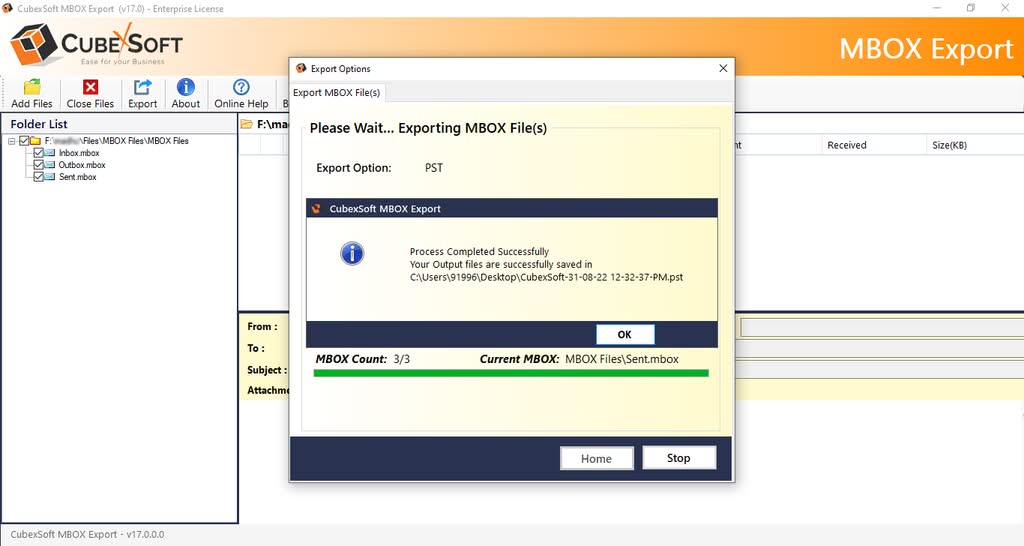
CubexSoft Opera Mail MBOX to PDF Converter – it is the easiest and most reliable method to convert Opera Mail emails into PDF files. Since Opera Mail stores emails in the MBOX format, the tool can directly convert mailbox data into PDF without data loss. The Opera Mail to PDF Conversion Solution is a reliable and user-friendly solution designed to help users convert Opera Mail emails into PDF format with complete accuracy. The tool ensures a smooth and hassle-free conversion process while delivering 100% accuracy.
It supports the conversion of Opera Mail MBOX files while preserving the original email formatting, metadata, attachments, and folder structure. With its intuitive interface, both technical and non-technical users can easily convert single or multiple Opera Mail emails into PDF documents in just a few clicks. The software offers a batch conversion feature, allowing users to export multiple MBOX files at once, which saves valuable time and effort. It also provides a preview option, that enables users to review email content before starting the conversion.
The software maintains all essential email properties, including sender and recipient information, subject lines, timestamps, inline images, hyperlinks, and attachments, ensuring that no important data is lost during the migration. Advanced filter options allow users to export specific emails based on date range, folders, or other criteria, which makes the conversion process more flexible and efficient.
This Opera Mail to PDF Converter is compatible with all major Windows operating systems and Mac Operating Systems. And it can process both small and large MBOX files without compromising performance. The Opera Mail to PDF Tool provides a dependable and efficient solution. With its fast processing speed, data integrity, and easy to use interface, it simplifies email conversion while ensuring that every detail of your Opera Mail mailbox is accurately preserved in high-quality PDF files.
How Do I Convert Opera Mail to PDF? – Working Steps
Step 1: Download and Install the Software
Install trusted MBOX Converter on your Windows computer.



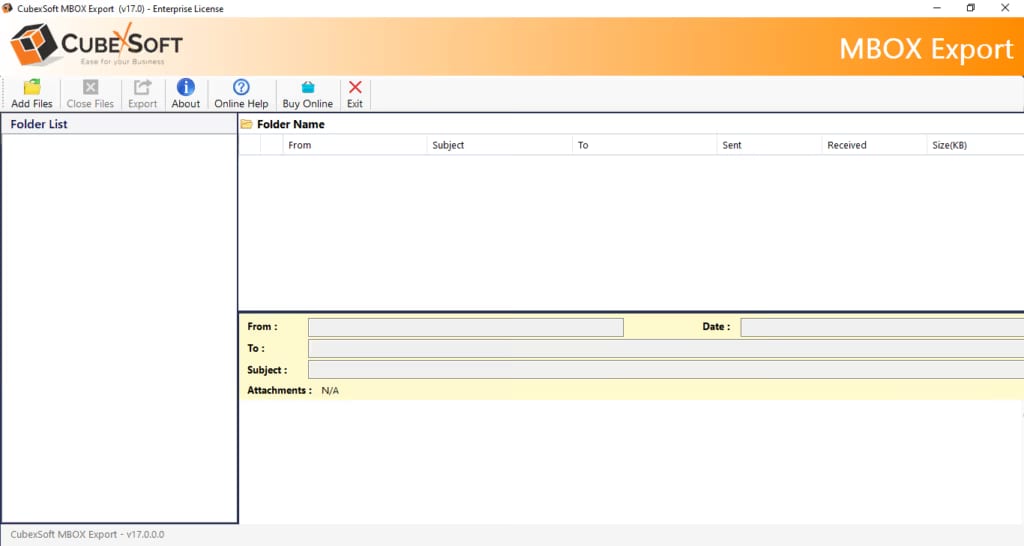
Step 2: Add Opera Mail MBOX Files
Launch the software and click Select Files or Select Folder to import Opera Mail MBOX files.
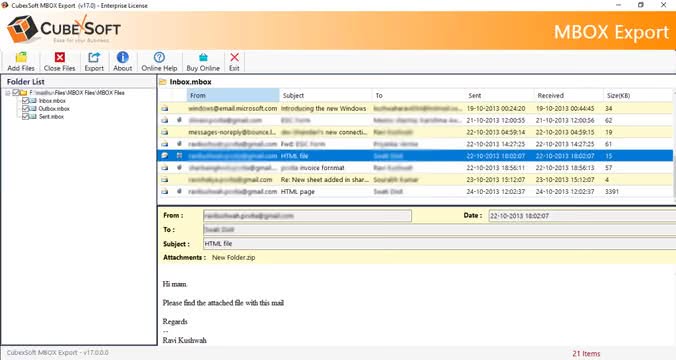
Step 3: Preview Mailbox Data
The software displays all emails in a preview panel, allowing you to verify the data before conversion.
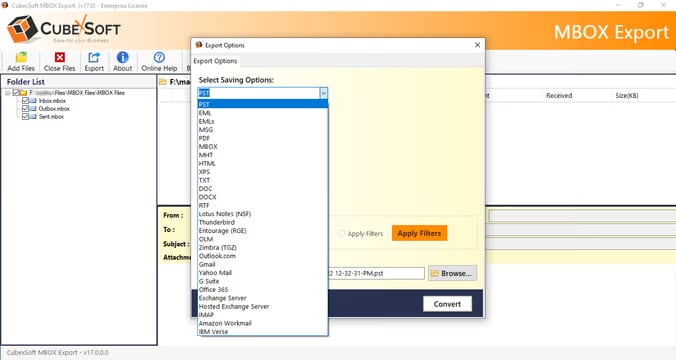
Step 4: Select PDF as the Output Format
Choose PDF from the list of available export options.
Step 5: Apply Advanced Filters (Optional)
Filter emails by date, exclude deleted folder, to, subject, etc.

Step 6: Start the Conversion
Click Convert to begin the process. Within minutes, all selected Opera Mail emails will be saved as PDF documents.
Benefits of the Opera Mail to PDF Converter
- Beginner-friendly interface
- Batch conversion of multiple Opera Mail files
- Maintains email formatting
- Preserves metadata (To, From, Subject, Date)
- Supports large mailbox files
- No risk of data corruption
- Saves attachments with emails
Method 2: Convert Opera Mail to PDF Manually
If you only need to convert a few emails, you can use the built-in Print feature.
Step 1: Open Opera Mail.
Step 2: Open the email you want to save.
Step3: Click File > Print, or press Ctrl + P.
Step4: Select Microsoft Print to PDF
Step5: Choose the destination folder and click Save.
Note: Repeat these steps for each email you want to convert.
Is Manual Method Feasible for Batch Conversion?
No, manual method is not feasible for batch conversion, it has several disadvantages:
- Time-consuming for multiple emails
- No batch conversion
- Attachments may not be included
- Difficult to preserve folder hierarchy
- Repetitive process for large mailboxes
For organizations or users with hundreds of emails, this method is generally impractical.
Frequently Asked Questions (FAQs)
Can I convert multiple Opera Mail emails into PDF?
Yes, the software allows you to convert multiple emails into PDF files.
Does the conversion preserve email formatting?
Yes, the professional converter retains the original formatting, including sender details, subject lines, embedded images, and other email elements.
Is the manual method suitable for large mailboxes?
No. The manual method is best suited for converting a small number of emails. For bulk conversions, the dedicated software is much faster and more efficient.
Read more
Conclusion
Converting Opera Mail emails to PDF is an excellent way to archive, print, and securely share important email data. If you only need to save a few emails, the manual Print-to-PDF method works well. However, if you’re dealing with large mailboxes or require bulk conversion while preserving folder structure, metadata, and formatting, using the professional software is the more efficient and reliable option. Users can opt for free demo option that lets users to convert 25 emails from Opera Mail to PDF files completely free of cost.
