How to Export All Emails from Outlook for Mac: Step By Step Solution 2026

If you’re looking for how to export all emails from Outlook for Mac, this guide will help you create a backup, transfer your mailbox, and keep important emails safe. Outlook for Mac 2011, 2016, 2019, 2021, and 2024 provide a built-in option to export mailbox data as an OLM file. However, New Outlook for Mac users need to switch to Legacy Outlook because the export feature is not available.
In this guide, you’ll learn how to export mail from Outlook in Mac, how to export mailbox from Outlook for Mac, and how to export emails from Microsoft Outlook for Mac with simple steps. You’ll also learn how to save emails from Outlook for Mac, how to copy emails from Outlook Mac, how to backup emails from Outlook Mac, and how to backup all emails from Outlook Mac.
Why Should You Export Emails from Outlook for Mac?
Microsoft Outlook for Mac helps users manage emails, contacts, calendars, and other mailbox data. Exporting emails to an OLM file helps create a backup, transfer mailbox data, and keep important emails safe. If you want to know how to export mailbox from Outlook for Mac, understanding the reasons for exporting is helpful.
Reasons to Export All Emails from Outlook for Mac
There are several reasons to export your Outlook mailbox:
- Create a backup: Save a copy of emails to prevent data loss.
- Transfer mailbox data: Move emails to another Mac or Outlook account.
- Keep important emails: Store emails for future access.
- Free up storage: Export old emails to improve Outlook performance.
- Archive emails: Maintain records for business or compliance needs.
How to Check Your Outlook Version on Mac?
Before you start how to export all emails from Outlook for Mac, check your Outlook version because the export steps vary depending on the installed Outlook version. Follow these steps to check your Outlook version:
- Open Outlook on your Mac.
- Click Outlook from the top menu bar.
- Select About Outlook.
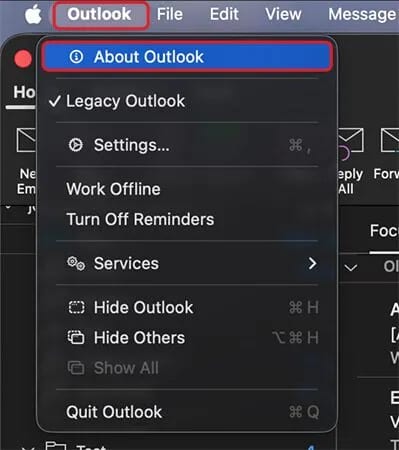
- In the About Outlook window, check the details next to License to see your Outlook version.

How to Export All Emails from Outlook for Mac?
If you want to know how to export emails from Microsoft Outlook for Mac, Outlook provides a built-in export option to save mailbox data as an OLM file. The procedure varies depending on your MS Outlook edtion.
Method 1: Export Emails from Outlook for Mac 2011
- Open Outlook and click File > Export.
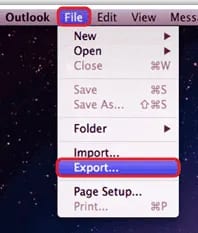
- Choose Outlook for Mac Data File (.olm).
- Select the mailbox items you want to export.
- Click the Next arrow.
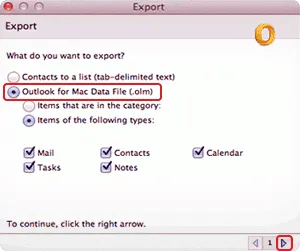
- Choose whether you want to delete the exported items from Outlook or keep them.
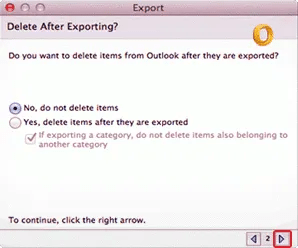
- Select a location to save the OLM file.
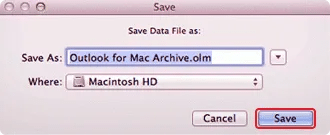
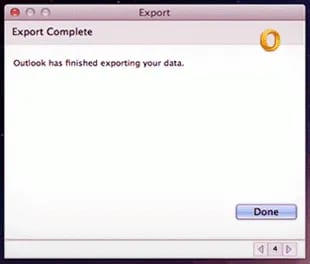
- Click Save and wait for the export process to finish. Once completed, click Done.
Method 2: Export Emails from Outlook for Mac 2016, 2019, 2021, and 2024
If you’re looking for how to export mailbox from Outlook for Mac, follow these steps:
- Launch Outlook on your Mac.
- Make sure Legacy Outlook is turned On.
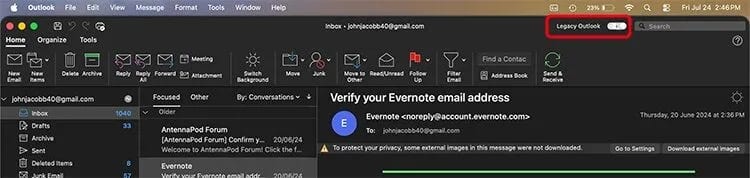
- Go to File > Export.
- The Export to Archive File (.olm) window will open.

- Select the mailbox items you want to export (all items are selected by default).
- Click Continue.
- Enter a name for the OLM file and choose the destination folder.
- Click Save.

- Wait until the export is complete.

- Click Finish, then open the selected folder to confirm that the OLM file has been created.

Method 3: Export Emails from New Outlook for Mac
New Outlook for Mac does not currently support OLM export. If you want to know how to save emails from Outlook for Mac or how to backup all emails from Outlook Mac, switch to Legacy Outlook and use the export feature. Follow these quick steps:

- Open Outlook.
- Click Help from the menu bar.
- Select Revert to Legacy Outlook.

- Click Revert when the confirmation message appears.
- Once Legacy Outlook opens, follow the export steps for Outlook 2016, 2019, 2021, or 2024 to export your mailbox successfully.
What to Do If the Export Option Is Greyed Out in New Outlook for Mac?
Sometimes, the Export option is unavailable in the New Outlook for Mac, making it difficult to export all emails from Outlook for Mac. If you’re facing this issue, try the following solutions.
Also Read- Outlook For Mac Export Greyed Out
Solution 1: Switch to Legacy Outlook
If you are searching how to backup emails from Outlook Mac, switching to Legacy Outlook is the easiest solution because it provides the built-in export option to create an OLM file.
- Open Outlook.
- Click Help from the menu bar.
- Select Revert to Legacy Outlook.
- Confirm your choice and restart Outlook.
- Once Legacy Outlook opens, follow the export steps explained earlier.
Note: Microsoft is developing the export feature for the New Outlook. However, Legacy Outlook will eventually be retired for Microsoft 365 Exchange Online users, so keep your Outlook app updated with Microsoft’s latest changes.
Check Out- Switch Back to Legacy Outlook
Solution 2: Contact Your IT Administrator
If you don’t see the option to switch to Legacy Outlook, your organization’s IT administrator may have disabled it through Microsoft 365 policies.
In this case, contact your administrator and ask them to enable access to Legacy Outlook temporarily so you can export your mailbox.
How to Open an OLM File in Windows Outlook?
After you export mail from Outlook in Mac, the data is saved as an OLM file. Since Windows Outlook does not support OLM files directly, you need to convert OLM to PST format.
You can use a trusted and expert solution i.e. CubexSoft OLM to PST Converter to complete this task without affecting your mailbox data. Most professional tools also let you preview emails, contacts, calendars, journals, and attachments before conversion. Some tools support exporting mailbox data directly to Outlook profiles or Microsoft 365 accounts and can also save emails in formats like PDF, EML, MSG, HTML, DOC, Yahoo, Gmail, IMAP, Thunderbird, and more.



Concluding Words
Learning how to export all emails from Outlook for Mac helps you create backups, transfer mailbox data, and save important emails. Outlook’s export feature lets you create an OLM file, while converting OLM emails to PST allows you to access mailbox data in Windows Outlook. If you need to use the exported mailbox in Windows Outlook, you’ll have to convert the OLM file to PST using a reliable CubexSoft Mac OLM Converter tool. This ensures your emails, journals, calendars, notes, contacts, and other mailbox data remain accessible across different Outlook platforms.
Common Questions About Exporting Outlook Emails from Mac
1. Why is the Export option greyed out in New Outlook for Mac?
The Export feature is currently not available in New Outlook for Mac. To export emails, switch to Legacy Outlook and use the built-in export option to save mailbox data as an OLM file.
2. How do I save Outlook for Mac emails as PDF?
Open the email, press Command + P, select PDF in the Print window, and click Save to store the email as a PDF file.
3. What is an OLM file?
An OLM file is a mailbox data file used by Outlook for Mac. It stores emails, contacts, calendars, notes, and other Outlook data.
4. How do I backup all emails from Outlook Mac?
Use the Export option in Legacy Outlook to create an OLM file containing your emails and other mailbox items.
5. Will my emails be deleted when Legacy Outlook is retired?
No, your emails will not be deleted. However, creating a backup of essential mailbox data is suggested before any major MS Outlook changes.
6. Can I open an OLM file in Outlook for Windows?
No, OLM files are not directly supported by Outlook for Windows. You need to convert OLM file to PST before importing it into Windows Outlook.
7. Can I export selected emails from Outlook for Mac?
Yes, you can select specific mailbox folder or items while exporting Outlook data to an OLM file.
