How to Fix “Outlook Data Files Usage Is Disabled on This Computer” Error in Outlook
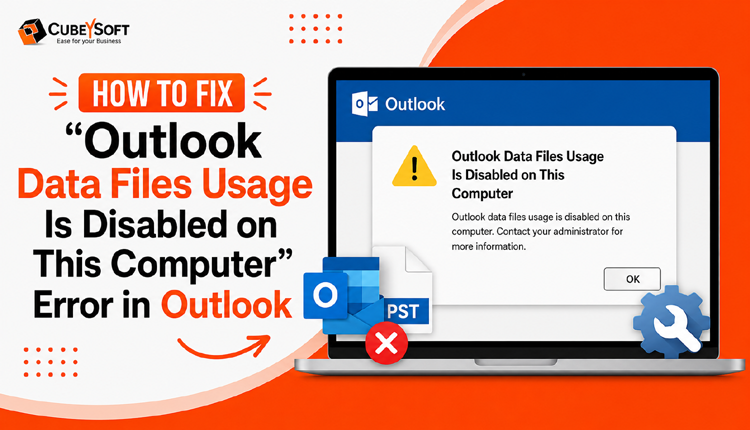
Microsoft Outlook is one of the most widely used email management applications for both businesses and individual users. It stores mailbox data in PST and OST files, allowing users to manage emails, contacts, calendars, and other important information efficiently. However, Outlook users may occasionally encounter unexpected errors that disrupt normal operations.
One such issue is the “Outlook Data Files Usage Is Disabled on This Computer” error, which can prevent users from accessing, creating, or modifying Outlook data files. This problem is commonly reported in Outlook 2010, 2013, 2016, and later versions, often due to specific policy restrictions or configuration settings applied to the system.
In this guide, we will explore the possible reasons behind this error and provide detailed solutions to restore access to Outlook data files. You will also learn how to modify the necessary Outlook settings and registry configurations to remove restrictions and resume normal Outlook functionality. Before proceeding with the troubleshooting methods, it is important to understand the circumstances that can trigger this issue.
Real-World Example of the Error
“I have been using Outlook for several years without any problems. Recently, when I tried to access my mailbox, Outlook displayed the message: ‘Outlook data files usage is disabled on this computer.’ Since then, I have been unable to work with my existing PST files or add new ones. I am unsure what caused this restriction and need a reliable solution to regain access to my Outlook data.”
Situations like this are not uncommon. The error can occur due to administrative policies, registry settings, Outlook configuration changes, or restrictions applied within an organization. As a result, users may find themselves unable to open, create, or manage Outlook data files, affecting their daily workflow.
Alternative Solution to Protect Outlook Data
If manual troubleshooting does not resolve the issue or if you want to secure your Outlook data before making changes, creating a backup of your PST files is highly recommended. A professional PST conversion utility can help users export Outlook data into multiple file formats and email platforms while maintaining the original folder structure and data integrity.
CubexSoft PST Converter for Mac & Windows offers an efficient way to preserve Outlook mailbox data by converting PST files into various file formats and cloud-based services. The software is designed with a simple interface, allowing both technical and non-technical users to perform conversions without complications. This approach helps ensure that important emails, contacts, attachments, and other mailbox items remain accessible even if Outlook-related issues persist.
How to Resolve “Outlook Data Files (.PST) Usage Is Disabled on This Computer”
If Outlook displays the message “Outlook Data Files (.PST) Usage Is Disabled on This Computer,” it usually indicates that specific Outlook policies or registry settings are preventing users from creating, opening, or modifying PST files. Fortunately, this restriction can often be removed by adjusting Outlook administrative settings or modifying the Windows Registry.
Below are two commonly used approaches to restore PST file functionality in Outlook.
Method 1: Remove PST Restrictions Through Outlook Policy Settings
For organizations that manage Outlook through Group Policy, PST file access may be restricted by administrative configurations. Adjusting these settings can re-enable PST-related operations.
Step 1: Install Administrative Templates
Download and install the appropriate Microsoft Office Administrative Template package that matches your Office installation (32-bit or 64-bit).
Step 2: Open Group Policy Editor
Launch the Group Policy Management Console and edit the policy object that controls Outlook settings within your environment.
Step 3: Access Outlook Configuration
Navigate to the Outlook administrative settings section and review the policies associated with data file management.
Step 4: Locate PST File Restrictions
Search for policies that prevent users from creating new PST files or adding content to existing PST files. These options may be enabled to restrict local data storage.
Step 5: Modify the Policy
Disable the restriction that blocks PST usage. Once the policy is updated, users should regain the ability to access Outlook data files and perform import/export operations.
Step 6: Apply the Changes
Refresh Group Policy settings and restart Outlook. After the new configuration takes effect, PST-related features should become available again.
Result: Users can once again open, manage, import, and export PST files without receiving the Outlook data file restriction error.
Method 2: Enable PST Access Through Windows Registry
If Outlook restrictions are controlled through registry entries, modifying the corresponding values can restore PST functionality. Before making any registry changes, create a backup to prevent accidental configuration issues.
Option A: Allow Users to Add Data to Existing PST Files
This setting controls whether Outlook users can continue storing information in already existing PST files.
Steps:
- Open the Registry Editor.
- Navigate to the Outlook PST policy key within the Office registry path.
- Create or locate the PSTDisableGrow DWORD value.
- Edit the value and assign it 0.
- Save the change and close the Registry Editor.
Value Reference:
- 0 – Users can add new content to existing PST files.
- 1 – Users are blocked from adding new information to existing PST files.
Setting the value to 0 removes the restriction and restores normal PST usage.
Option B: Allow Creation and Attachment of PST Files
If Outlook prevents users from adding PST files entirely, the DisablePST registry setting may be responsible.
Steps:
- Launch Registry Editor.
- Browse to the Outlook policy location within the Office registry hierarchy.
- Create or locate the DisablePST DWORD value.
- Modify the entry and set its value to 0.
- Save the changes and restart Outlook.
Value Reference:
- 0 – PST files can be created and attached normally.
- 1 – PST functionality is completely blocked.
- 2 – Limited PST access is allowed for specific shared PST scenarios.
By assigning the value 0, Outlook regains full PST support.
Final Thoughts
Outlook PST restrictions are commonly introduced through administrative policies or registry configurations. While these settings are often used to enforce organizational data management rules, they can sometimes prevent legitimate access to Outlook data files and trigger the “Outlook Data Files Usage Is Disabled on This Computer” error.
The methods outlined above can help restore PST functionality by updating Group Policy settings or adjusting the appropriate registry entries. Before making system-level changes, it is recommended to back up important Outlook data files to avoid accidental data loss and ensure a safe recovery process if needed.
