How to Fix POSIX 61 Error Apple Mail?
Introduction
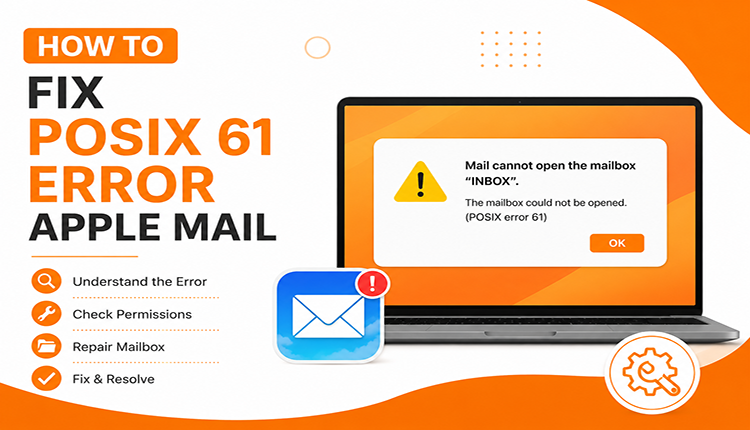
If you are frequently encountering POSIX Error 61 in Apple Mail frequently. Then don’t worry. In this guide, we will learn how to fix POSIX 61 Error Apple Mail by discussing both manual troubleshooting techniques and a professional software solution. Apple Mail is one of the most widely used email clients among Mac users due to its seamless integration with macOS and user-friendly interface. However, like any application, it can sometimes display unexpected errors that disrupt email communication. One such issue is the POSIX Error 61 in Apple Mail. This error usually appears when users attempt to send or receive emails and can prevent the application from connecting to the mail server.
What is POSIX Error 61 in Apple Mail?
POSIX Error 61 is a connection-related error that indicates Apple Mail cannot establish communication with the configured mail server. The error generally occurs when there is a problem with network connectivity, server settings, firewall restrictions, or corrupted mailbox data.
A typical error message may look like:
“The server returned the error: POSIX error 61 – Connection refused.”
This message suggests that the mail server is rejecting or unable to accept the connection request from Apple Mail.
What can be the Reasons Behind POSIX 61 Error?
- Incorrect incoming or outgoing mail server settings.
- Internet connectivity issues.
- Firewall or antivirus software blocking connections.
- Mail server downtime or maintenance.
- Corrupted Apple Mail mailbox files.
- Outdated macOS or Apple Mail application.
- Problems with account authentication settings.
- Damaged email database or MailData files.
Explore: Top 5 Email Clients for Mac
Manual Methods to Fix POSIX 61 Error Apple Mail
Method 1: Verify Internet Connectivity
A weak or unstable internet connection is one of the most common reasons for connection errors.
- Open Safari and visit multiple websites.
- Restart your Wi-Fi router if needed.
- Switch to another network and test Apple Mail.
- Confirm that other internet-dependent applications are working correctly.
If the internet connection is stable and the error persists, proceed to the next method.
Method 2: Check Mail Server Settings
- Open Apple Mail.
- Navigate to Mail > Settings > Accounts.
- Select the affected email account.
- Verify incoming and outgoing server details.
- Confirm port numbers and SSL settings with your email provider.
Ensure that:
- IMAP, POP, and SMTP server names are correct.
- Authentication credentials are accurate.
- SSL/TLS encryption is properly configured.
Method 3: Disable Firewall Temporarily
Sometimes macOS Firewall or third-party security software blocks Apple Mail’s connection requests.
- Open System Settings.
- Go to Network & Security > Firewall.
- Temporarily disable the firewall.
- Launch Apple Mail and test the connection.
Method 4: Remove and Re-add Email Account
Corrupted account configurations can also cause connection issues.
- Open Apple Mail settings.
- Select the problematic account.
- Remove the account.
- Restart your Mac.
- Add the account again using the correct credentials.
- This process refreshes account settings and often resolves synchronization problems.
Method 5: Rebuild Apple Mail Mailboxes
Mailbox corruption may prevent proper server communication.
- Open Apple Mail.
- Select the affected mailbox.
- Click Mailbox > Rebuild.
- Wait for the rebuilding process to complete.
Apple Mail will recreate mailbox indexes and may eliminate errors caused by damaged mailbox data.
Method 6: Update Mac OS and Apple Mail
Running outdated software can lead to compatibility issues with modern mail servers.
- Open System Settings.
- Select General > Software Update.
- Install available updates.
- Restart the system.
- After updating, launch Apple Mail and check if the issue has been resolved.
Limitations of Manual Methods
- Time-consuming troubleshooting.
- Risk of accidental data loss.
- No guarantee of success.
- Difficulty handling severely corrupted mailboxes.
- Technical expertise required.
In such situations, a professional solution becomes a safer alternative.
Fix Apple Mail Issues Using Software Solution
When mailbox corruption is the root cause of POSIX Error 61, using CubexSoft Apple Mail Converter can help secure and recover important email data before further troubleshooting. The software is designed to export Apple Mail emails into multiple file formats while maintaining complete data integrity. Users can convert Apple Mail to PST, PDF, MBOX, EML, MSG, CSV, and other formats for backup and migration purposes.
Key Benefits of the Software
- Converts Apple Mail emails to PDF, Office 365, and many more saving options.
- Preserves attachments, metadata, and folder hierarchy.
- Supports bulk email conversion.
- Creates secure backups before mailbox repair.
- Allows migration to various email clients and platforms.
- User-friendly interface suitable for all users.
Steps to Use Apple Mail Converter in Order to Fix POSIX 61 Error Apple Mail


- Install and launch the software.
- Select Apple Mail mailbox files.
- Choose the desired output format.
- Start the conversion process clicking Export.
- Save converted files to the selected destination.
Once your mailbox data is safely backed up, you can proceed with additional troubleshooting or account reconfiguration without worrying about email loss.
Tips to Prevent POSIX Error 61 in the Future
To minimize the chances of encountering this error again:
- Maintain a stable internet connection.
- Regularly update macOS and Apple Mail.
- Verify server settings after email provider changes.
- Avoid abrupt system shutdowns.
- Keep mailbox sizes manageable.
- Create regular email backups.
- Use reliable antivirus and firewall configurations.
- Monitor server status during connection issues.
Read more
Conclusion
POSIX Error 61 in Apple Mail is primarily a server connection issue that can result from incorrect settings, network problems, firewall restrictions, or mailbox corruption. Fortunately, several manual methods such as checking server configurations, rebuilding mailboxes, updating software, and re-adding accounts can help resolve the problem. However, if the issue stems from damaged mailbox data, relying solely on manual troubleshooting may put valuable emails at risk. In such cases, using the suggested software provides a safe way to back up and recover email data while preserving attachments, metadata, and folder structure. By combining proper troubleshooting with a reliable backup strategy, users can resolve how to fix POSIX 61 Error Apple Mail efficiently and protect their important email communications.
