How to Import Outlook Emails to Thunderbird with All Data Types
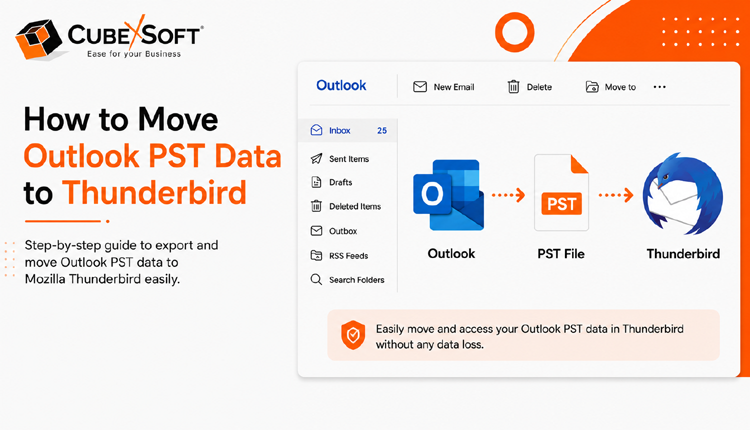
In this article, we cover two reliable methods to import Outlook emails, contacts, and calendar data to Thunderbird without disrupting the folder structure. The free import option works well for small to medium-sized mailboxes, while a dedicated migration tool offers a faster solution for handling larger volumes of data. Both methods provide a one-time transfer without ongoing synchronization between Outlook and Thunderbird.
Outlook vs. Thunderbird: Why Do Users Migrate?
- Cost-Effective: Thunderbird is free to use and regularly updated, while Outlook typically requires a Microsoft 365 subscription or a paid Office license.
- Lightweight & Fast: Thunderbird’s open-source architecture is designed to deliver smooth performance, even on systems with limited resources.
- Privacy-Focused: Thunderbird is a desktop email client that does not use your mailbox data for targeted advertising.
- Free Add-ons: A wide range of free extensions lets users customize Thunderbird with features such as calendars, advanced filters, and productivity tools.
- No Vendor Lock-In: Thunderbird gives users greater control over their emails, contacts, and calendars, with data available in widely supported formats for easier export and management.
Essential Checklist Before Importing Outlook to Thunderbird
Before beginning the migration, make sure your system meets these basic requirements:
- Install Outlook Classic & Thunderbird: For the manual method, keep updated versions of Outlook Classic and Thunderbird installed on the same Windows computer.
- Use a Configured Outlook Profile: Thunderbird’s built-in import feature requires an active, properly configured Outlook Classic profile to access your data.
- Check 32-bit/64-bit Compatibility: Ensure Outlook and Thunderbird use compatible bit versions. A mismatch can cause the Outlook import option to appear unavailable or greyed out.
- Keep Enough Free Space: Make sure your drive has adequate storage for importing emails, contacts, calendars, and other mailbox data.
- Outlook Mac & Web Users: The manual method is intended for Outlook Classic on Windows. Mac users may need to work with an OST file, while Outlook.com/Microsoft 365 web users should use a suitable backup or export method before importing the data into Thunderbird.
How to Import Outlook Data to Thunderbird Manually?
Once the basic requirements are ready, you can proceed with Thunderbird’s built-in import option to move your Outlook data. The process is straightforward for emails and contacts, as both can be brought over directly from a configured Outlook Classic profile without creating separate export files.
Calendar data follows a different process. Since Thunderbird cannot directly fetch the Outlook calendar from the profile, you need to save the calendar from Outlook first and then import the exported file into Thunderbird.
The sections below explain each part of the migration separately. Follow all three methods if you want to move your complete Outlook mailbox, or use only the relevant section for the data you need.
#1: Convert Outlook Emails to Thunderbird
- Launch Thunderbird and click Tools from the menu bar.
- Select Import, choose Import from Outlook, and click Continue.
- In the Import window, select Mail Messages and click Continue.
- Click Start Import to begin transferring your Outlook emails.
- Once the process finishes, click Finish.
#2: Transfer Outlook Contacts to Thunderbird
- Open Thunderbird and navigate to Tools.
- Click Import and select Import from Outlook.
- Click Continue and select Address Book.
- Click Continue, followed by Start Import.
- After the contacts are transferred, click Finish.
#3: Move Outlook Calendar to Thunderbird
- Open Outlook Classic and switch to the Calendar section.
- Select the calendar you want to move and go to File.
- Choose Save Calendar, then click More Options and select the required Date Range.
- Click OK and save the calendar file to your computer.
- Launch Thunderbird and go to Tools > Import.
- Select Import from a File, choose Import Calendars, and click Continue.
- Browse to the calendar file exported from Outlook and select it.
- Choose the calendar item you want to import and click Continue.
- Select an existing calendar account as the destination or create a new calendar.
- Click Continue > Start Import, and select Finish once the process is complete.
Note: The above procedure has been tested with Thunderbird 140.13.0 Extended Support Release (ESR).
Limitations of Manual Migration
Although Thunderbird provides a free way to move Outlook data, the manual approach has a few limitations:
- Duplicate Data: Repeating the import after an interrupted or incomplete migration may result in duplicate emails.
- Read/Unread Status: The original read/unread status of Outlook emails may not be retained after import.
- Not Ideal for Large Mailboxes: Large-volume migrations may take longer and can potentially cause Thunderbird to become unresponsive or crash.
- Requires Technical Knowledge: The multiple steps involved can be challenging for users who are not familiar with email migration or desktop email clients.
Common Errors When Importing Outlook Data to Thunderbird Manually & Their Fixes
Although Thunderbird offers a built-in way to bring Outlook data into the application, users may encounter issues during the process. Here are some common problems and possible solutions.
- Outlook Import Option Is Greyed Out: This can happen when Outlook and Thunderbird are installed with different bit architectures. Check whether both applications are using compatible 32-bit or 64-bit versions.
- Outlook Profile Not Detected: Thunderbird may fail to recognize the Outlook profile because of profile corruption or restricted permissions. Try repairing the Outlook profile and running Thunderbird with administrator privileges.
- Emails Are Missing After Import: An interrupted migration can result in an incomplete transfer. Repeat the process and avoid running other applications or performing resource-heavy tasks until the import finishes.
- Thunderbird Stops Responding or Crashes: Large mailboxes and computers with limited system resources can make the built-in import process unstable. For bigger migrations, using a dedicated conversion utility can provide a more practical alternative.
Pro Converter Tool for Bulk Data Transfer
When the manual process becomes too time-consuming or difficult to manage, a dedicated migration utility can simplify the entire task. CubexSoft Outlook Converter is designed to transfer Outlook emails, contacts, and calendar data to Thunderbird in a single process.
The software can also import Outlook data directly into Thunderbird’s Local Folders and supports both single and multiple mailboxes. A trial version is available, allowing users to explore the available features and evaluate the migration process before completing the transfer.
How to Import Outlook Data to Thunderbird Using a Converter?
A dedicated Outlook to Thunderbird Converter can simplify the migration by moving emails, contacts, and calendar entries without requiring separate processes for each data type. The overall procedure is straightforward:
- Install and open the PST to MBOX Converter software.
- Select Add Files and Convert Data from Configured Outlook Profiles option to load PST files.
- Select the Outlook folders you want to migrate, including mail folders, contacts, and calendars.
- Click Export button to choose Thunderbird as the destination.
- Use the available filters if you want to migrate only selected emails or specific data.
- Click Convert to start transferring the selected Outlook data.
Why Choose a Professional Converter Tool?
Compared with the built-in import option, dedicated migration software provides greater control over the transfer. It allows you to:
- Pick Specific Folders: Transfer only the Outlook folders you need, such as Inbox, Sent Items, Contacts, or Calendar.
- Apply Advanced Filters: Narrow down the migration using sender, recipient, subject, or date-based conditions.
- Work with Ease: A simple interface makes the process manageable even for users without much technical experience.
- Keep Read/Unread Status: Email messages retain their original read or unread state after migration.
- Create a Migration Report: A log file is generated after the process, providing a record of the transferred data.
- Preserve Data Structure: The software maintains the existing folder hierarchy and retains the formatting of supported data.
What If Outlook Is Not Installed?
You can still migrate your Outlook data when the Outlook application is unavailable, provided you have access to the required PST files. A compatible converter can read the PST files directly and transfer their contents to Thunderbird without needing Outlook to be installed. This can be particularly helpful when you have an old backup or PST archive that needs to be moved to a new email client.
Final Words
In this article, we have explained two practical methods for moving Outlook data to Thunderbird. The built-in import option works well for smaller mailboxes and users looking for a free solution, while a dedicated converter offers a faster and more convenient way to transfer emails, contacts, and calendars. Your choice ultimately depends on your mailbox size, migration requirements, and preferred level of convenience.
